

Gemini Canvas can help you turn a small idea into an interactive prototype. The useful starting point is not a complicated business platform. It is one clear task, such as calculating a project estimate, checking a packing list, or practicing a short quiz. This guide walks through a simple estimator and shows how to judge whether the result actually works.
The examples and prompts below are a suggested workflow, not results from a hands-on benchmark. Product details were checked against Google’s documentation on November 15, 2026. Treat the first version as a prototype that needs review before anyone relies on it.
What Gemini Canvas does
Google describes Canvas as a workspace for creating and editing documents, apps, slides, and code. Its Canvas help guide explains how to start from the Canvas option beneath the prompt box, submit a request, and refine the result. You can inspect generated code and use the preview console to investigate errors.
For a beginner, the most useful distinction is between describing an outcome and specifying its rules. “Build a calculator” describes an outcome. “Multiply hours by an hourly rate, add a fixed expense, and show each component separately” gives the system something testable.
A prototype is also different from a production service. A working preview does not establish that authentication, accessibility, storage, or error handling meet your requirements. If you are comparing tools for a larger development project, our AI coding assistants guide provides a broader starting point.
Before you start: scope, access, and cost
Sign into Gemini and check whether Canvas appears in your account. Google’s help page does not provide a single universal price or fixed number of builds. Access, model allowances, and account restrictions can change, so use your account’s current plan details before assuming a feature or capacity is included.
For this exercise, start with the access you already have. Do not subscribe simply to discover whether a basic estimator is useful. A paid allowance may help with heavier use, but it cannot replace a clear brief or careful testing. If your account stops a generation, save your requirements and resume later instead of paying for an unrelated tool.
Write down these five decisions before opening a new project:
- Who will use the prototype?
- What information will they enter?
- What exact calculation or action should happen?
- What should happen when an input is missing or invalid?
- Does the prototype need to store anything at all?
Our example uses invented project data and needs no sign-in, payment processing, or customer database. That keeps the exercise focused on the interaction rather than infrastructure.
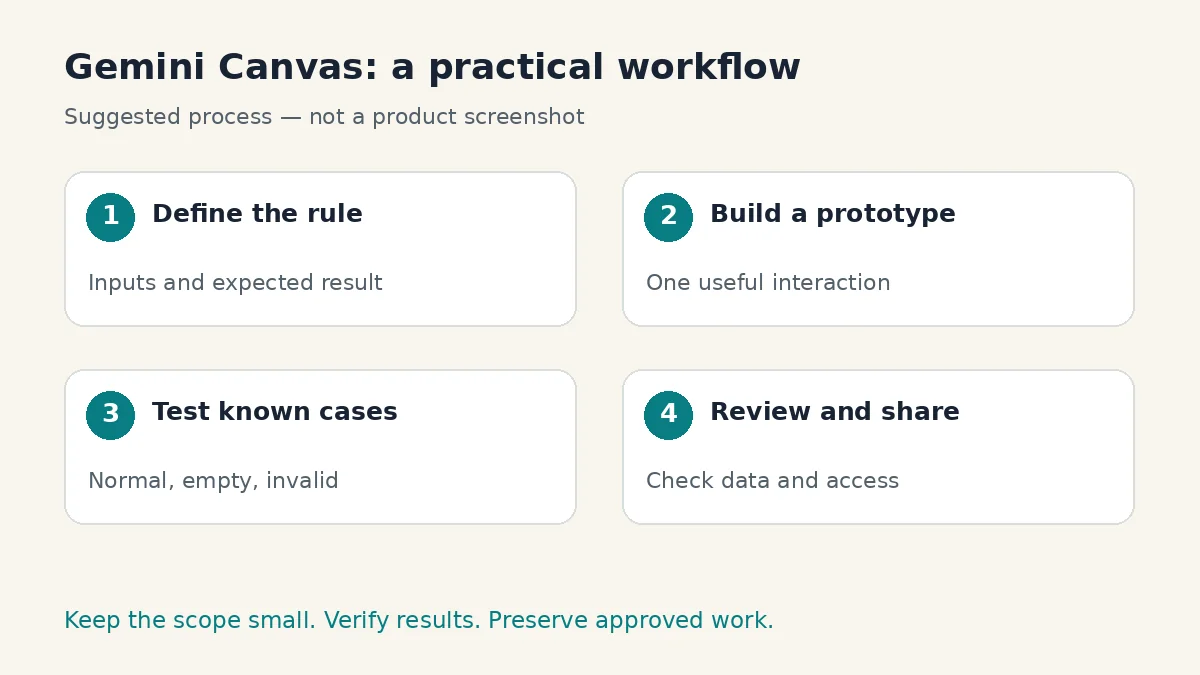
Step 1: define one useful calculation
Imagine a freelance designer who wants a rough project estimator. The user enters estimated hours, an hourly rate, and an optional fixed expense. The result is a planning estimate, not an invoice or a binding quotation.
Use this explicit rule:
Estimated total = estimated hours × hourly rate + fixed expense.
Choose one currency label for the whole prototype. Do not add live exchange rates, tax calculations, discount codes, or payment links to the first version. Each extra rule introduces more cases to verify and makes it harder to locate the cause of an incorrect result.
Decide whether decimals are allowed. For example, 2.5 hours is reasonable, but a negative number of hours should produce a helpful message. An empty fixed-expense field can mean zero only if you deliberately choose that behavior and explain it beside the field.
Step 2: give Gemini a complete first prompt
Open Canvas and use this original prompt as a starting template:
Build a simple project-estimate prototype. Include three clearly labeled inputs: estimated hours, hourly rate, and optional fixed expense. Calculate hours multiplied by rate, plus the expense. Display the calculation breakdown and total in one chosen currency. Allow decimals. Reject negative values and explain missing required inputs. Treat an empty optional expense as zero. Include Calculate and Reset controls. Use a readable single-column mobile layout, visible keyboard focus, and labels that remain visible while typing. Do not add accounts, external services, payments, or persistent storage. Use invented sample values only. Label the result as a planning estimate.
Notice how the prompt includes behavior as well as appearance. A request for a “beautiful modern calculator” leaves critical decisions unstated. If you need more help shaping requests, use the principles in our guide to writing clearer AI prompts.
After generation, read the interface before entering anything. Are the labels understandable? Does the currency appear consistently? Is the planning-estimate notice visible? Fix confusing language before adding more features.
Step 3: test the arithmetic independently
Do not ask the same model to be your only judge of its own calculation. Work out a few expected results yourself and compare them with the preview.
| Test | Inputs | Expected behavior |
|---|---|---|
| Standard estimate | 3 hours, rate 20, expense 10 | Total 70 |
| Decimal hours | 2.5 hours, rate 20, expense 0 | Total 50 |
| Optional expense empty | 3 hours, rate 20 | Total 60 if empty means zero |
| Negative input | Minus 1 hour | Clear validation message |
| Required input empty | No hourly rate | No misleading total |
| Reset | Values already entered | Inputs and displayed result reset consistently |
Also change a value after calculating. Does the result update automatically, or does the interface clearly require another click? Either interaction can work, but stale numbers should not look current.
Record failures in plain language. “With 2.5 hours and a rate of 20, the preview shows 40 instead of 50” is far more actionable than “the math is broken.” Keep the example inputs in your notes so you can repeat the test after a fix.
Step 4: request small, targeted improvements
Ask for one change at a time. For example: “Keep the current formula and layout. Add an error below the hours field when its value is negative. Do not change other behavior.”
This gives you a manageable comparison between versions. Combining a redesign, a new currency selector, saved estimates, and validation changes in one instruction makes failures difficult to isolate. After any change, rerun the arithmetic cases, including the ones that previously passed.
Google documents direct code editing and preview-console access in Canvas. Use those features when needed, but do not paste an error log without reviewing it for private information. A short error message and the action that triggered it are often enough to begin troubleshooting.
Step 5: check usability on a narrow screen
Try the prototype at a phone-sized width. Field labels should remain visible, results should not overlap, and buttons should be easy to distinguish. A large total is useful only when the user understands what produced it.
Test keyboard navigation too. Move through the fields in order, activate the controls, and check whether the current focus is visible. Avoid relying on color alone to communicate an invalid value. A written explanation helps people understand what to correct.
Ask one other person to use the prototype without instructions. Observe where they hesitate. If they ask whether the amount includes tax, add a clear scope note rather than quietly inventing a tax rule. Real questions reveal missing requirements more effectively than another decorative redesign.
Step 6: check data handling before sharing
Google’s Canvas safety guidance says shared Canvas apps use public links and describes different data behavior for single-user and shared-data apps. For multi-user apps, people with the public link may see and edit associated shared data. Do not treat possession of a link as a private client portal.
Our suggested estimator avoids storing customer details. Before sharing, inspect whether the generated implementation actually follows that requirement. Remove sample names that resemble real customers and avoid adding credentials, account numbers, or private pricing agreements.
Share with a small review group first. Ask them to test the same inputs and report the device they used. If you later need a production database or restricted access, treat that as a separate development task with its own review, not a cosmetic improvement to this demo.
Step 7: keep a useful handoff record
Save the final requirements, formula, test inputs, known limitations, and any code you intend to maintain. Add a brief change log: what changed, why it changed, and which checks were repeated.
This is especially helpful if another developer takes over. “The calculator looks finished” is a weak handoff. “These six cases passed, storage is excluded, and currency conversion is out of scope” communicates what the work actually establishes.
For general habits around keeping AI-produced work accessible, see our AI tool shutdown checklist. The purpose is continuity: your requirements and useful outputs should remain understandable outside the original conversation.
Pros, cons, and verdict
The strengths: this workflow can make a small idea easier to inspect, discuss, and refine. A concrete prototype encourages useful feedback, and explicit examples make mistakes easier to explain.
The limitations: generated behavior still needs verification. Access and usage allowances vary, visual polish can hide functional problems, and sharing requires attention to data exposure. Complex applications need more engineering than this exercise provides.
Our verdict: use Gemini Canvas to explore a small, well-defined interaction. Start with one calculation, test it independently, and expand only after the basic behavior is reliable. The best first app is one whose correctness you can explain, not simply one that looks impressive.
Frequently asked questions
Do I need coding experience to try Gemini Canvas?
You can begin by describing a small app in plain language. You still need to check its behavior, and production features may require a developer’s review.
Is a Canvas preview proof that an app is ready for customers?
No. Verify calculations, invalid inputs, accessibility, data handling, and sharing before relying on the app. A prototype preview is only one part of that process.
Should my first app save customer information?
For this exercise, use invented values and avoid storage. Add customer data only through a separately reviewed design with appropriate access controls.
What should I do when the generated calculator gives a wrong result?
Record the exact inputs, expected result, and actual result. Request a focused correction, then repeat both the failed case and previously successful cases.
Do I need a paid plan for this guide?
Check whether Canvas is available in your current account and review its limits. Start with existing access; this guide does not require buying a subscription or promise a fixed free allowance.