
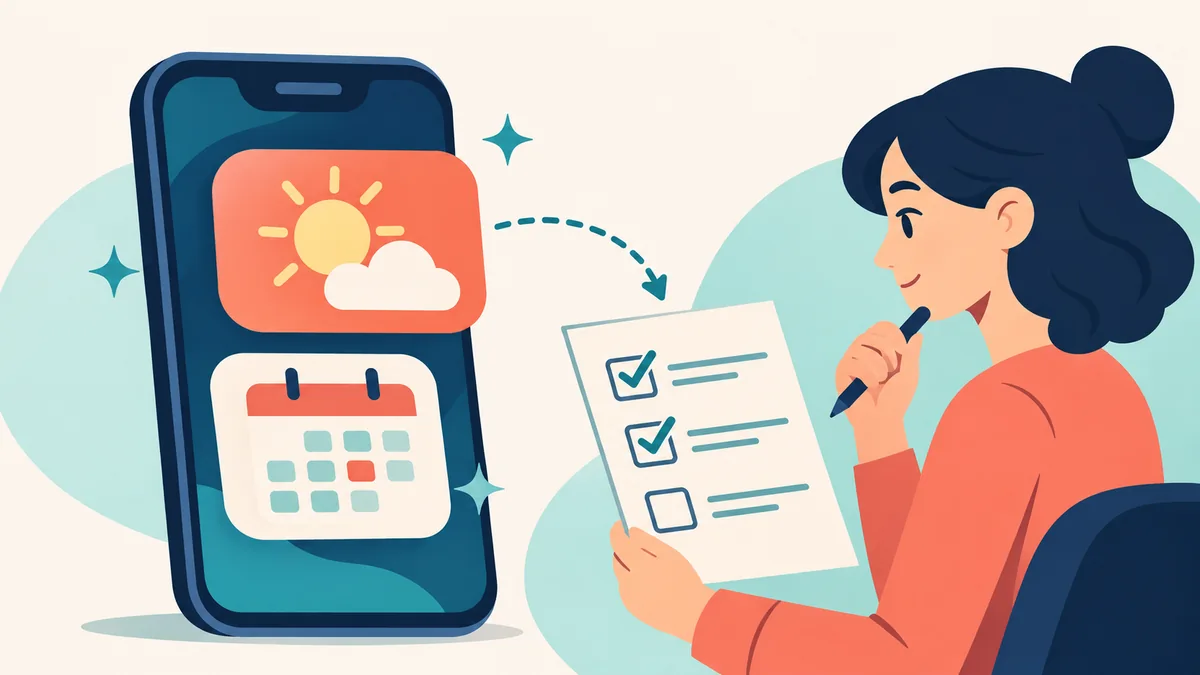

Pixel AI widgets make an appealing promise: describe the small piece of information you want on your home screen, instead of searching for an app that already offers it. The more important question is whether that little display stays useful after the first impressive preview.
Google’s November 10, 2026 Pixel Drop announcement includes personalized widgets, with availability limited to listed devices and select markets. This guide explains the confirmed rollout details, then offers an independent checklist for deciding what to build and how to evaluate it. We have not tested the feature on a phone; the examples below are suggested briefs, not verified outputs.
What the November update actually confirms
In its official November Pixel Drop announcement, Google describes widgets for spending, sports and travel. Its eligibility footnote lists Pixel 10, 10 Pro, 10 Pro XL, 10 Pro Fold, Pixel 11, 11 Pro, 11 Pro XL and 11 Pro Fold, in select markets. Pixel 10a is absent from that list.
Google says the wider update rolls out over several weeks. It describes widget availability on Pixel Watch 4 and 5 as coming soon, rather than already universally available. The announcement does not establish a separate widget subscription price or a complete country list. Check the terms shown for your account before paying for anything.
Those details matter because a release announcement and access on your particular device are different milestones. Do not buy a replacement phone based solely on a feature headline. First establish whether the feature is available where you live and whether the proposed use solves a real problem.
Check 1: establish availability before troubleshooting
Start with the exact model name rather than its family nickname. Write down the model, software version, country and account you are using. This makes a support question much easier to answer than “my Pixel does not have the new AI.”
Google’s Pixel community announcement says rollout timing can depend on carrier and device. It advises updating Android and apps and watching for a notification from the My Pixel app. That is the sensible starting point; installing an unrelated application with a similar name is not evidence that you have received Google’s feature.
If it is missing, keep a short record of what you checked and when. Avoid repeatedly changing accounts, regions and settings without knowing which requirement is unmet. Several simultaneous changes make it harder to understand what eventually worked. A phased rollout also means that another person’s successful demonstration does not establish availability for your account.
There is no need to rebuild your home screen while you wait. Keep the existing weather, calendar or other standard widget that already serves your purpose. An experiment should be easy to reverse, with your normal information still accessible.
Check 2: choose one question for each widget
A useful widget answers something you ask repeatedly. Before writing a prompt, complete this sentence: “When I glance at my phone, I want to know ___ so I can ___.” If the second blank is difficult, you may be designing decoration rather than a useful shortcut.
For example, “I want to see the next relevant event so I can decide when to leave” is more focused than “organize my whole day.” The narrow request gives you a clear test. You can compare the displayed event with its source and decide whether the information helps.
Try separating your ideas into three groups:
- Glanceable information: a small fact or status that can fit comfortably on one card.
- Detailed investigation: a question that needs several sources, explanations or calculations.
- Actions: something that changes data, places an order or communicates with another person.
Begin with the first group. A display that looks like a button does not prove it can safely perform the action you imagined. Equally, a neat total is not proof that a calculation includes every relevant entry. Treat output and action as separate capabilities until the actual feature demonstrates otherwise.
For a more flexible prototype with custom calculations, our Gemini Canvas guide describes a different approach. A phone widget and a small app are useful for different jobs; choose based on the task rather than the novelty.
Check 3: write a brief that you can verify
A good brief identifies the purpose, information source, display and fallback behavior. It should be short enough to understand but precise enough to judge. Avoid a large list of unrelated requests in the first attempt.
Here is an example of a test brief:
Create a simple weather card for Lahore. Show the location, the forecast date and the temperature unit clearly. Keep the text readable at a glance. If current information is unavailable, show that it is unavailable rather than presenting an old value as current.
This is a proposed prompt, not a promise that every instruction is supported. If the feature rejects a requirement or ignores it, record that limitation. Do not assume more enthusiastic wording will create access to a data source the tool does not support.
For an event card, specify which event matters, which calendar should supply it if supported, and how the date should appear. Avoid “my next important meeting,” because importance needs a definition. A personal appointment, a public holiday and a work deadline may all compete for that position.
The same discipline appears in our guide to writing clearer AI prompts: explain the context, request a specific result and name the format. For widgets, add an explicit rule for missing or outdated information. A blank or unavailable state is more honest than a confident-looking guess.
After the first result, change only one thing at a time. For example, ask for a larger date before changing the colors, information source and layout together. Small revisions help you identify which instruction improved the result.
Check 4: compare the display with its source
The first test is accuracy, not appearance. Open the underlying information separately and compare the fields you depend on. For a calendar example, check the event date, time zone and title. For a weather example, check the location, forecast period and units.
A useful evaluation has three situations:
- Normal data: the expected information exists and is easy to identify.
- Changed data: something relevant has been edited or a newer value is available.
- Missing data: the expected item cannot be found or the source is temporarily unavailable.
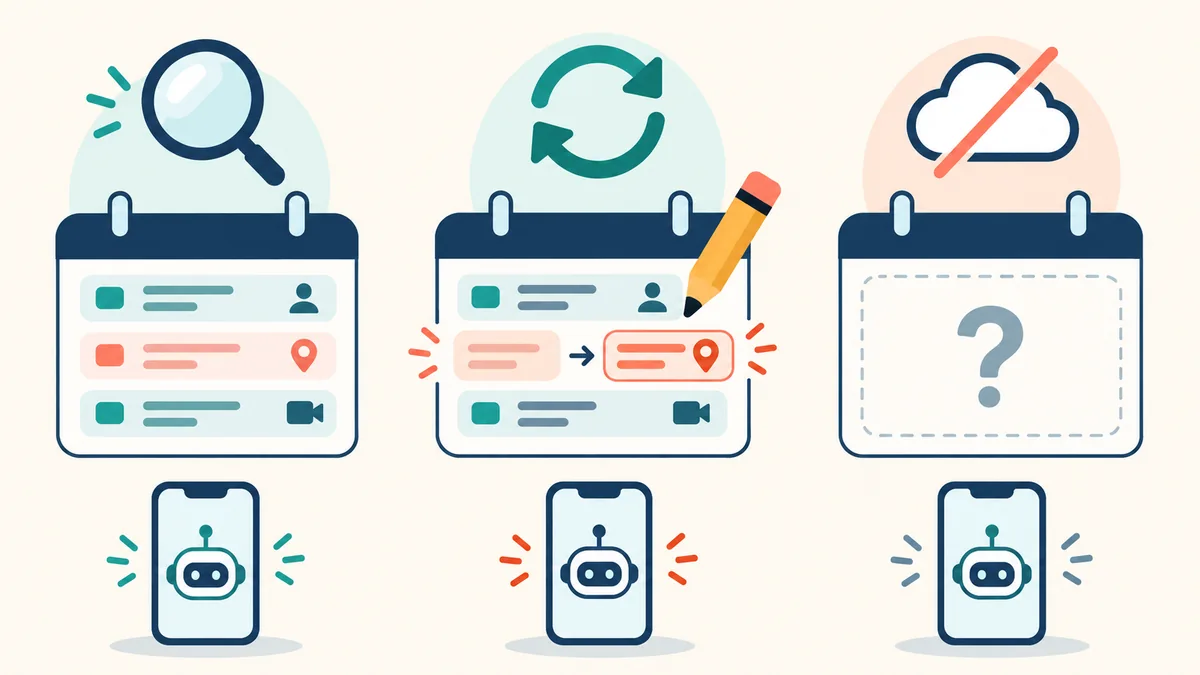
These are suggested checks, not a claim about how Google’s implementation handles them. The point is to discover the behavior on your device before relying on it. If you cannot establish when a value was refreshed, treat it as a convenience display and reopen the original source for important decisions.
Write down an expected result before checking the widget. Otherwise it is easy to rationalize an incorrect output because it looks plausible. A tiny test log can contain the date, source value, displayed value and whether the difference mattered.
For example, an event rescheduled from morning to afternoon should not remain a morning reminder in your daily routine. If the widget lags, the practical question is whether its refresh behavior meets your needs. Rephrasing the prompt may not change the underlying update mechanism.
Also test readability at the size you intend to use. Long titles can hide the detail you most need. A beautiful card that requires opening another screen every time may add less value than the ordinary widget it replaced.
Check 5: decide what belongs on the home screen
Information that is useful to you can also be visible to someone standing nearby. Consider what the widget would reveal during a screen share, a demonstration or a moment when you hand your phone to another person.
Use fictional or low-sensitivity information for your first experiment. Before granting access, read the actual permission request and ask whether that access is necessary for the narrow task. A prompt asking for privacy does not replace account controls or the application’s documented data practices.
Keep confidential client names, private travel details and sensitive account information out of an experimental display unless you understand the consequences. This is a general design recommendation, not a statement that the feature exposes those details by default.
Decide your exit condition as well. You might keep a widget only if it answers one useful question, remains readable and passes your source checks. If it requires constant repair, remove it and return to the standard tool. The time saved should exceed the time spent maintaining it.
Is it worth trying?
Pixel AI widgets are most interesting when you have a narrow information need and already have access on a supported device. The practical opportunity is to reduce the friction of checking something familiar. The limitation is that a convincing presentation can make uncertain or stale information feel authoritative.
Try one widget before redesigning your entire home screen. Keep the original source close by, give the experiment a clear purpose and judge the result over ordinary use. Avoid treating it as a replacement for a dedicated app when accuracy, detailed controls or an audit trail matter.
This is also why buying hardware solely for the feature is premature without checking local availability and trying the relevant workflow. A useful widget should earn its space through reliable behavior. The strongest result is not the most elaborate card; it is the one that answers your recurring question with less effort and no additional confusion.
Frequently asked questions
Which phones are listed for the personalized widgets?
Google lists Pixel 10, 10 Pro, 10 Pro XL, 10 Pro Fold, Pixel 11, 11 Pro, 11 Pro XL and 11 Pro Fold in select markets. Check current eligibility for your exact model and location.
Why might the feature be missing after the announcement?
Google describes a phased rollout. Its community guidance says timing can vary by carrier and device. Update supported software and apps, then check the official guidance for your account and model.
Are the sample prompts tested results?
No. They are editorial examples for planning an experiment. The feature may not support every requested source, layout or fallback instruction, so verify the result on your own device.
Can I trust a generated widget without checking it?
Compare important information with its original source first. Test ordinary, changed and missing data, and reopen the source when freshness or accuracy could affect a decision.
Should I buy a new phone just for AI widgets?
First confirm availability in your market and whether the feature solves a recurring problem. Trying it on an eligible device is a better basis for a purchase than relying on a launch headline.