

Most AI image tools make you do the hard part: you have to describe everything in a long, detailed prompt. Gemini’s personalized image generation takes a different approach. With your permission, it uses your Google data to fill in the details, so a short request like “create an image of my dream vacation” can come back looking like it was made for you.
Google launched this as a paid perk in April 2026, then made personalized image generation free for eligible users in the United States at the end of June. Here is how it works, how to turn it on, what the free version includes, and how to stay in control of your data.
What Is Personalized Image Generation in Gemini?
Normal AI image generators only know what you type. Gemini’s personalized image generation also draws on Personal Intelligence, an opt-in feature that lets Gemini use information from your connected Google apps: Gmail, Google Photos, YouTube and Search. It runs on Google’s Nano Banana image model.
In practice, Gemini can pick up on your interests. If you’ve labeled people in Google Photos, it can also understand words like “Family.” It can even use photos of you from Google Photos, so you don’t need to upload one. A request such as “generate an image of my family and me doing our favorite activity” works without you listing the activity.
After an image is created, a Sources button shows which personal information Gemini used. Google also warns that Gemini can get the context wrong, and you can send feedback when it does.
What You Need Before You Start
- A personal Google account with Gemini access
- Eligible U.S. access to the free version of personalized image generation (see the availability section below)
- Photos in Google Photos, ideally with the people in them labeled
- Personal Intelligence turned on, which takes a minute
How to Turn On Personal Intelligence
- Open the Gemini app (or gemini.google.com) and sign in.
- Tap Settings.
- Tap Personal Intelligence.
- Choose Connected Apps.
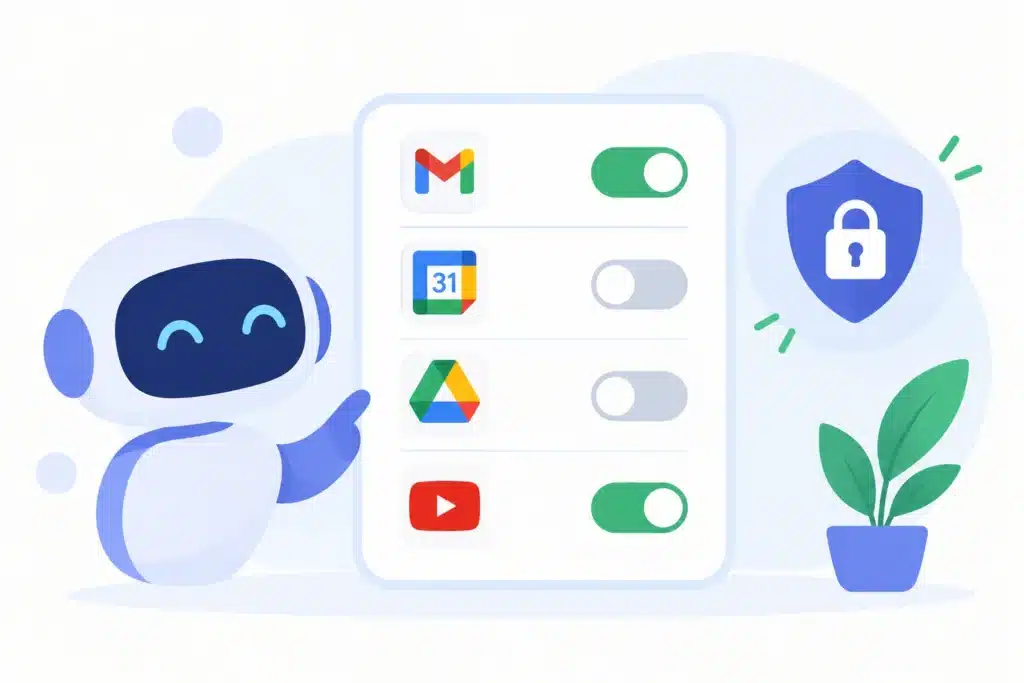
- Switch on only the apps you’re comfortable with. For images, Google Photos is the most useful one.
If you see an invitation to try Personal Intelligence on Gemini’s home screen, you can start there instead. Menu names can differ slightly between the app and the website.
How to Create Your First Personalized Images
The best way to try personalized image generation is to start with a short, simple request and let Gemini fill in the gaps. Try prompts like these:
- “Create an image of my dream home.”
- “Generate an image of my family and me doing our favorite activity.”
- “Turn me into a superhero in a 90s comic book style.”
Then refine the result with follow-up messages: change the style, the background or the mood. Check the Sources button to see what Gemini relied on. If the image misses the mark, add more detail or tell it what to ignore. Clear instructions still help, so our tips on how to write better ChatGPT prompts apply here too.
Privacy: What Gemini Can See and How to Stay in Control
Because personalized image generation relies on personal data, it’s worth knowing the controls:
- It’s off by default. Nothing is connected until you choose to turn it on.
- You pick the apps. You can connect Photos without Gmail, for example.
- Google says Gemini doesn’t train directly on your Gmail inbox or Google Photos library, according to its announcement.
- It’s a beta feature, and Google says mistakes haven’t been eliminated.
- You can switch it off for a specific chat, or use a temporary chat that doesn’t reference your personal data.
Images can also include your real likeness, so think before you share them, and be careful with photos of other people.
What the Free Version Includes
The free version of personalized image generation uses Nano Banana 2. Reports on the rollout say free users get limited quotas and standard 1K downloads, while 2K downloads and the more advanced Nano Banana Pro are tied to a paid Google AI plan.
Google lists daily image limits for each plan on its Gemini limits help page, and it says those limits can change. Treat any number you read, including ones in articles like this, as temporary.
How It Compares With Other Free AI Image Generators
Most free tools, from ChatGPT to Adobe Firefly, rely only on what you type. Gemini’s personalized image generation moves some of that work onto your Google data. That helps if long prompts aren’t your thing, but it’s a trade: you give up some privacy for convenience.
If you’d rather keep full control, see our guide to the best free AI image generators for beginners. For the bigger picture on the assistant behind this feature, read our ChatGPT vs Claude vs Gemini comparison.
Is Personalized Image Generation Available Outside the US?
Google’s announcement of free access covered eligible U.S. users and didn’t mention other countries. Personal Intelligence itself has expanded to places including India, Japan and Malaysia, but whether personalized image generation is offered, and whether it’s free, varies by country and plan.
The simplest check is to open Settings → Personal Intelligence in your own Gemini app and see what’s available to you.
Frequently Asked Questions
For eligible U.S. users, yes, since late June 2026, with limited quotas. Higher-quality options such as Nano Banana Pro and 2K downloads need a paid Google AI plan.
No. Personal Intelligence is off by default, and you choose which apps to connect. You can turn it off at any time.
Personal Intelligence can connect Gmail, Google Photos, YouTube and Search. For images, Google Photos matters most, especially if you’ve labeled the people in it.
Yes. Use the Sources button on the image to see which personal information informed the result.
Personalized image generation is opt-in and you control which apps connect, but it does use personal data. Start with one app, check the Sources button, and turn Personal Intelligence off for chats where you don’t want personal context.